
PDF Reader Annotator PLUS Online Tutorial
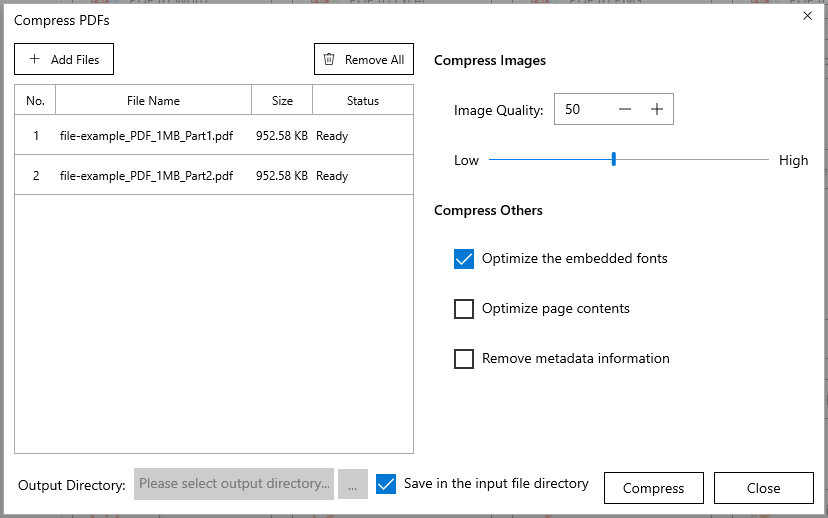
How to Compress PDFs?
Step 1, Click the “… All Tools” button on the home page then click the “Compress PDF” button.
Step 2, Select the PDF files that you want to compress and click the “Open” button.
Step 3, Adjust the compress options as needed.
Step 4, Click the “Compress” button.
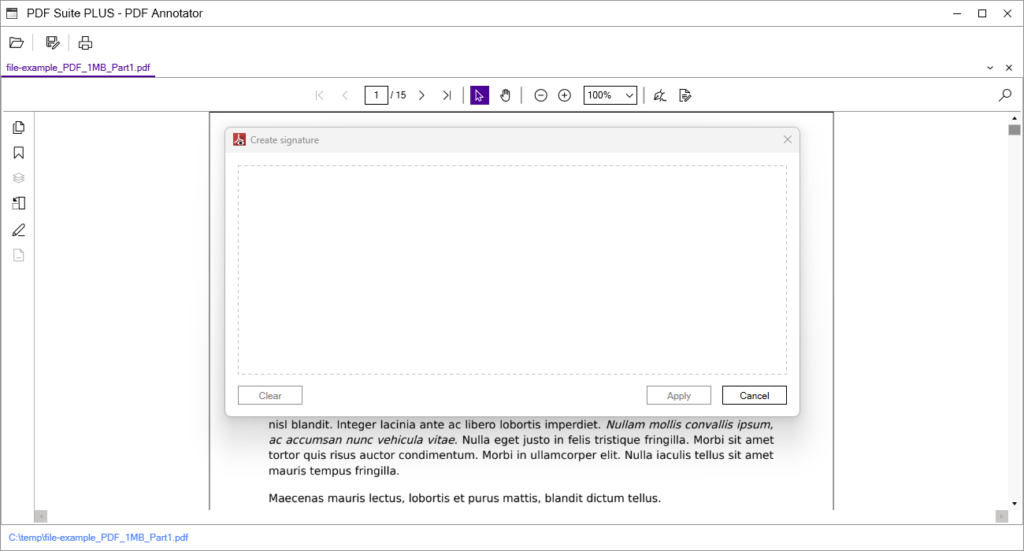
How to Add a Signature to a PDF File?
Step 1, Click the “… All Tools” button on the home page then click the “Add Signature” button.
Step 2, Select the PDF file and click the “Open” button.
Step 3, Now draw your signature in the designated area, and click the “Apply” button.
Step 4, Adjust the size and position of your signature in the PDF file, and save the modified file.
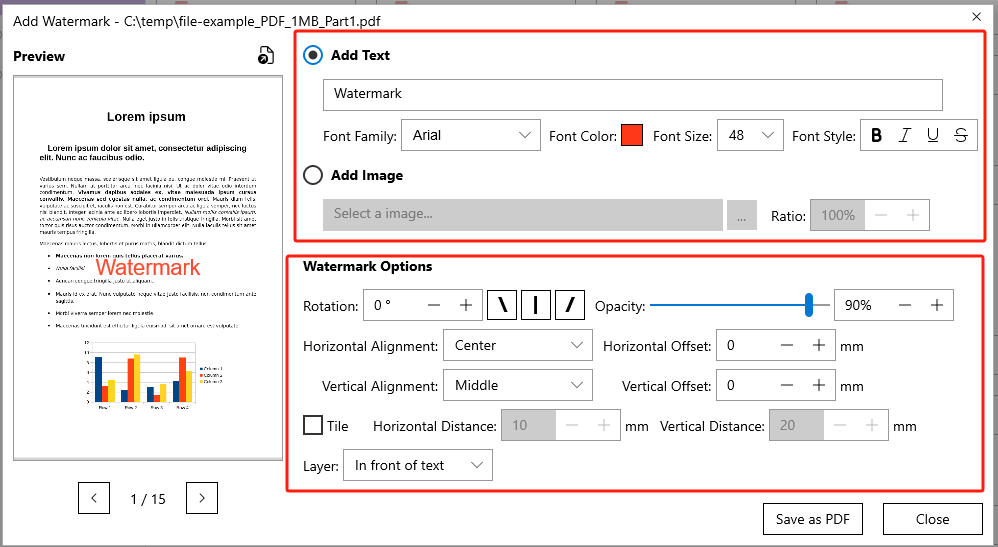
How to Add Watermarks to a PDF File?
Step 1, Click the “… All Tools” button on the home page then click the “Add Watermark” button.
Step 2, Select the PDF file and click the “Open” button.
Step 3, Enter the watermark content and adjust watermark options if needed.
Step 4, Click the “Save as PDF” button to save the modified file.
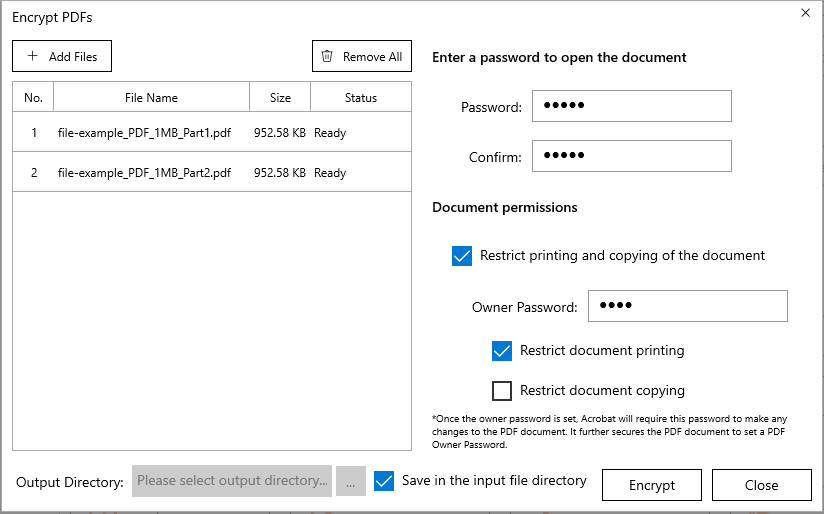
How to Encrypt PDFs?
Step 1, Click the “… All Tools” button on the home page then click the “Encrypt PDFs” button.
Step 2, Select the PDF files that you want to encrypt and click the “Open” button.
Step 3, Enter the password. Optionally, you can enable “Restrict printing and copying” and provide an owner password.
Step 4, Click the “Encrypt” button.
Step 5, When the encryption is complete, click the “Finish” button.
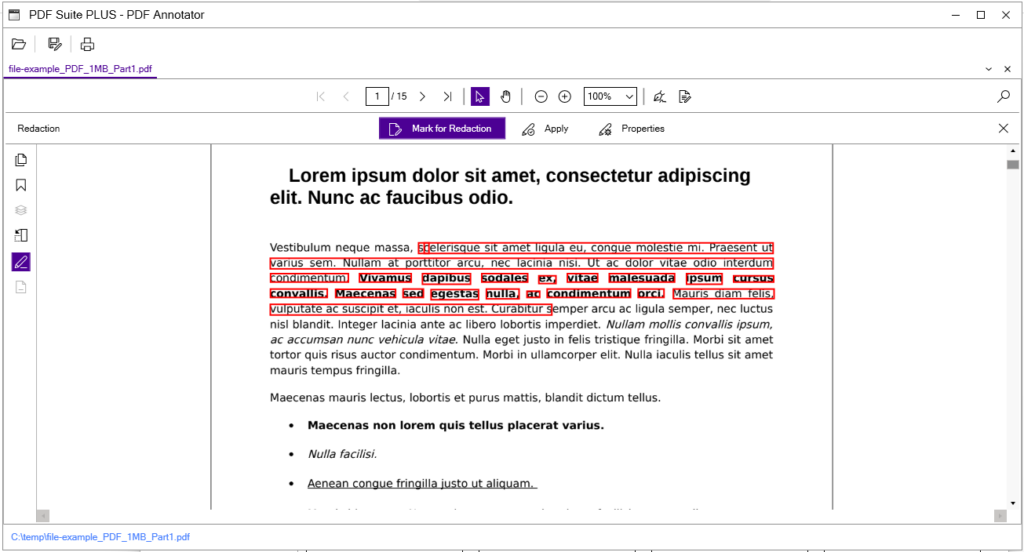
How to Redact a PDF File?
Step 1, Click the “… All Tools” button on the home page then click the “Redact PDF” button.
Step 2, Select the PDF file and click the “Open” button.
Step 3, Click the “Mark for Redaction” button and select the text.
Step 4, Click the “Apply” button.
Step 5, When the Redaction is complete, don’t forget to save the modified file.
E-mail Support
If you have any further questions or feed-backs about the app, please feel free to reach out to us by email. We are here to listen and help.
Pages: 1 | 2 | 3 | 4 | 5 | 6