PDF Reader Annotator PLUS Online Tutorial
How to Merge PDFs?
Step 1, Click the “… All Tools” button on the home page then click the “Merge PDF” button.
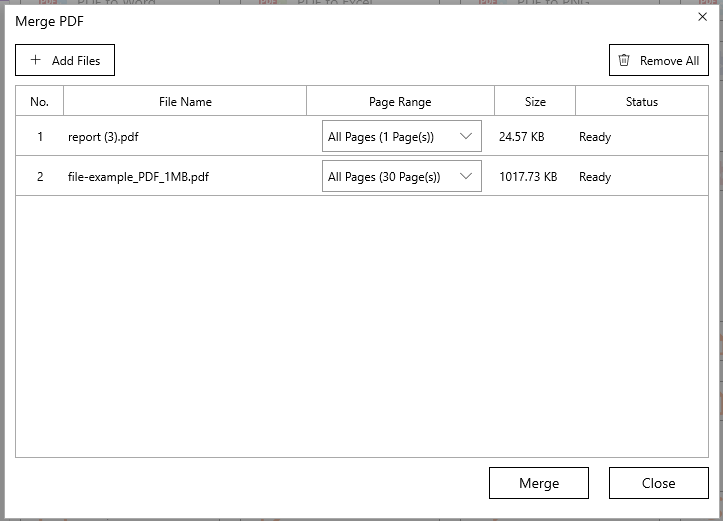
Step 2, Select the PDF files that you want to merge and click the “Open” button.
Step 3, Click the “Merge” button.
Step 4, Name the merged file and click the “Save” button.
How to Split a PDF?
Step 1, Click the “… All Tools” button on the home page then click the “Split PDF” button.
Step 2, Select the PDF file that you want to split and click the “Open” button.
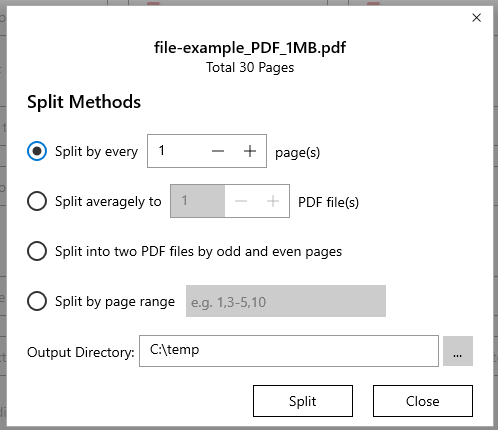
Step 3, Choose a split method, and click the “Split” button.
Step 4, Once the split is complete, you can open the output directory to find the new files.
How to Delete Pages from a PDF?
Step 1, Click the “… All Tools” button on the home page then click the “Delete Pages” button.
Step 2, Select the PDF file and click the “Open” button.
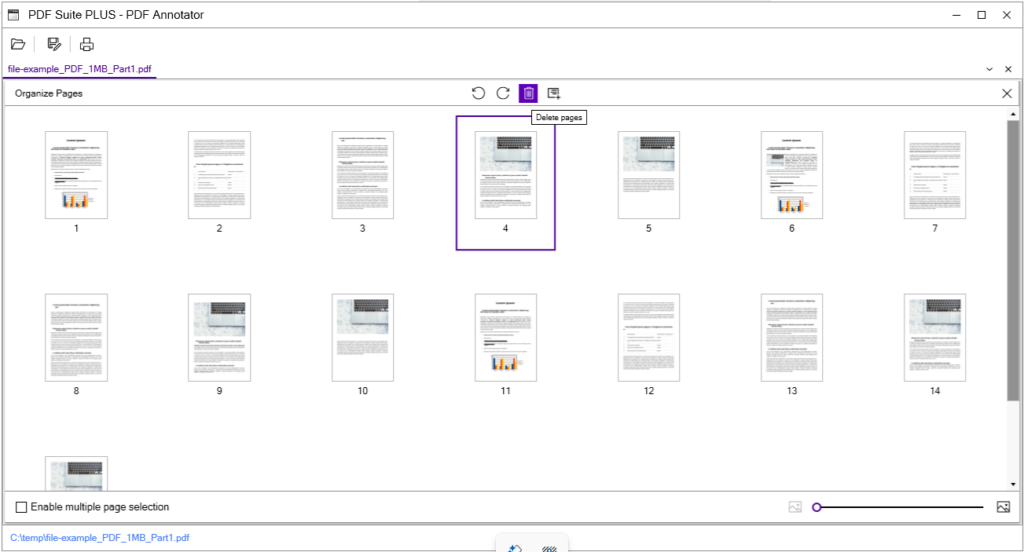
Step 3, Select the page(s) that you want to delete and click the “Delete” button.
Step 4, Don’t forget to save the modified PDF file.
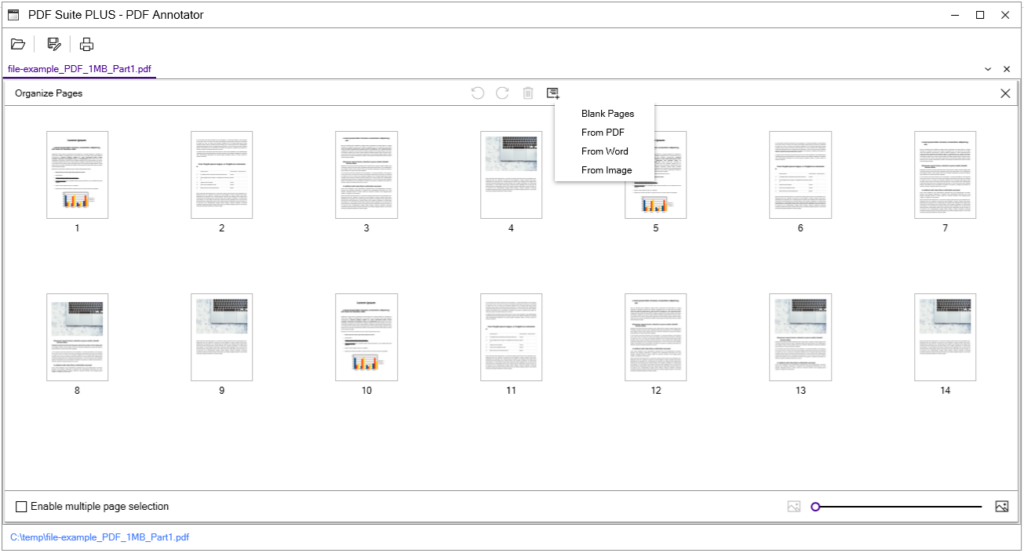
How to Insert Pages to a PDF file?
Step 1, Click the “… All Tools” button on the home page then click the “Insert Pages” button.
Step 2, Select the PDF file and click the “Open” button.
Step 3, Click the “Insert Pages” button and select one option from the drop-down list.
Step 4, Don’t forget to save the modified PDF file.
How to Extract Pages from a PDF?
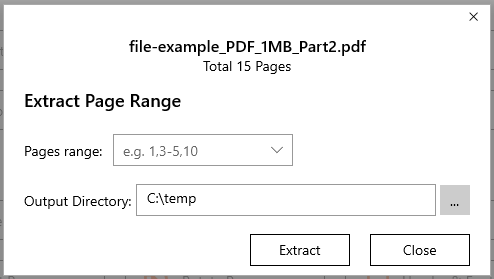
Step 1, Click the “… All Tools” button on the home page then click the “Extract Pages” button.
Step 2, Select the PDF file that you want to extract from and click the “Open” button.
Step 3, Enter Pages range, and click the “Extract” button.
Step 4, Once the extract is complete, you can open the output directory to find the new file.
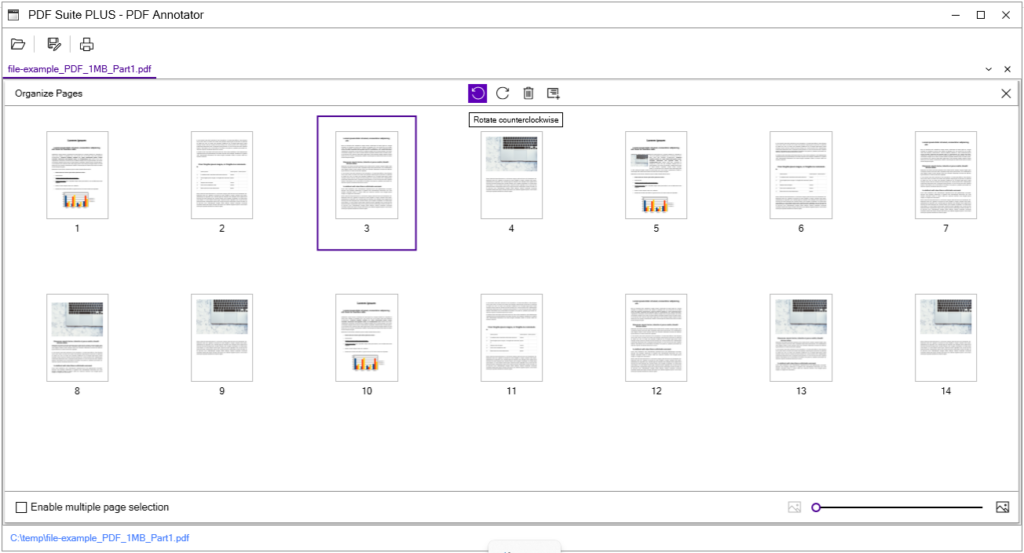
How to Rotate Pages in a PDF?
Step 1, Click the “… All Tools” button on the home page then click the “Rotate Pages” button.
Step 2, Select the PDF file and click the “Open” button.
Step 3, Select the page(s) that you want to rotate and click the rotate button.
Step 4, Don’t forget to save the modified PDF file.
How to Add Headers and Footers to a PDF file?
Step 1, Click the “… All Tools” button on the home page then click the “Header & Footer” button.
Step 2, Select the PDF file and click the “Open” button.
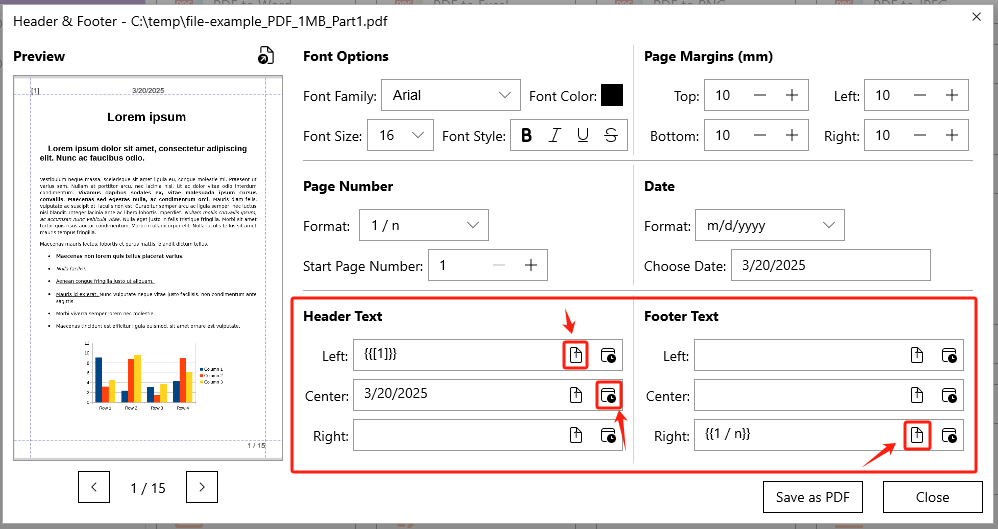
Step 3, Configure the Header Text and/or Footer Text as shown below.
Step 4, Click the “Save as PDF” button to save the modified file.
How to Add Bates Numbers to a PDF file?
Step 1, Click the “… All Tools” button on the home page then click the “Bates Numbers” button.
Step 2, Select the PDF file and click the “Open” button.
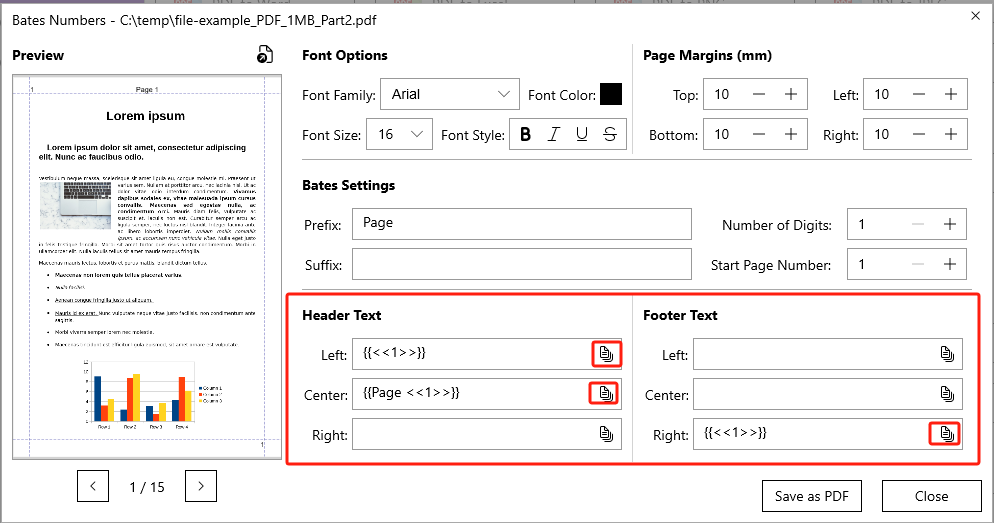
Step 3, Configure the Header Text and/or Footer Text as shown below.
Step 4, Click the “Save as PDF” button to save the modified file.